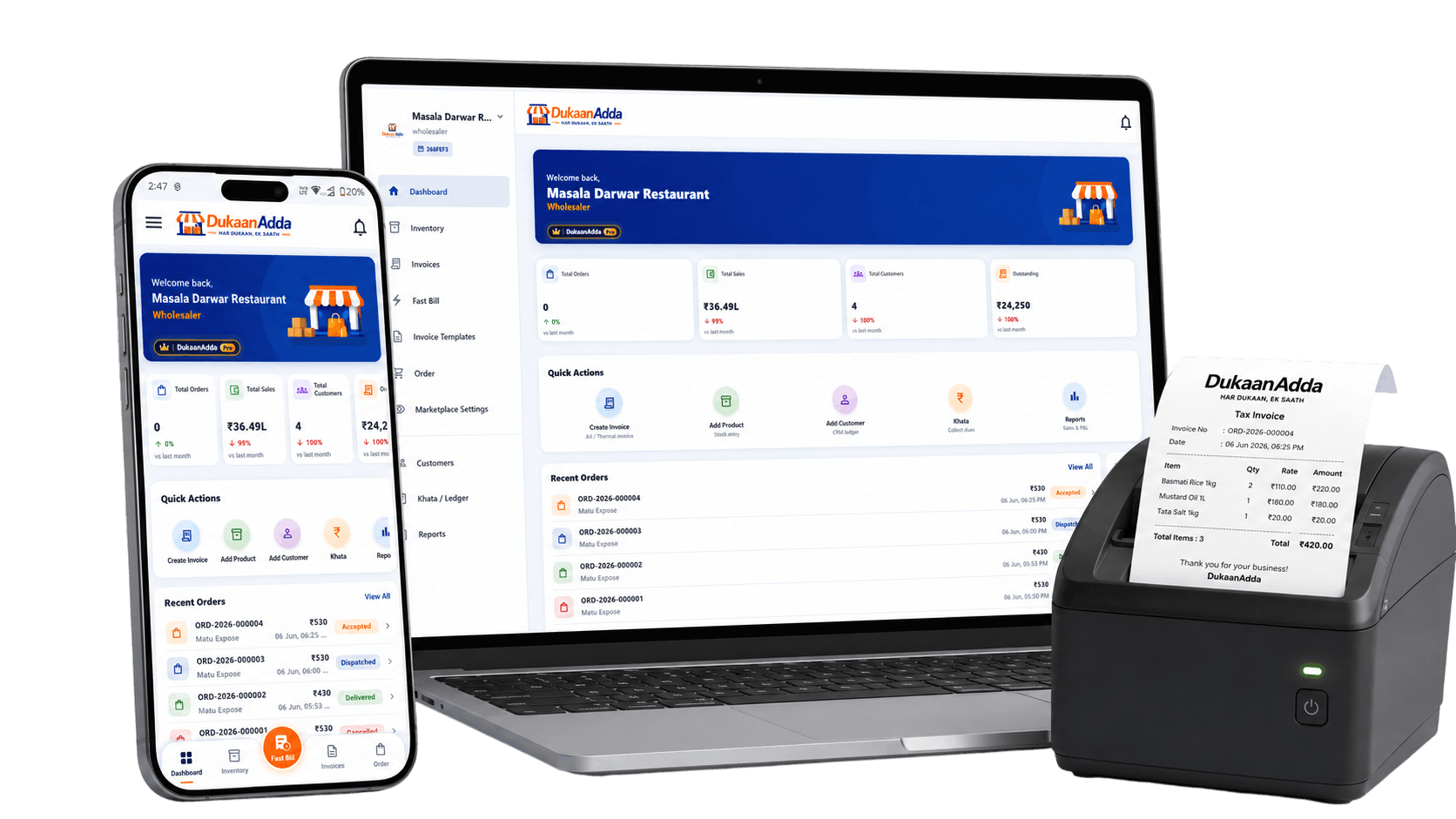
DukaanAdda App Icon
DukaanAdda Support

How can we help you?

Find help for installation, login, billing, invoices, inventory, marketplace, premium plan and account support.

Browse Help Categories

Quick Installation Help

Follow these quick steps to get DukaanAdda running on your preferred device in minutes.

Android App Setup

  1. Open Google Play Store on your device
  2. Search and install "DukaanAdda"
  3. Sign in with your secure Google account
  4. Initialize your shop details to begin

Windows Desktop Setup

  1. Visit our official Download Center
  2. Choose between Microsoft Store or Direct EXE
  3. Run the installer and complete the setup
  4. Sign in and sync details across your devices

Detailed Help Guides

Browse step-by-step documentation for configuring settings, managing data, and resolving issues.

Getting Started

Learn how to login, setup business and start using DukaanAdda.

DukaanAdda uses Google Sign-In for absolute security. Open the app, click 'Sign in with Google', select your Gmail account, and authorize the login. No password setup required!

Step-by-step Guide

  1. Open the DukaanAdda app on Android or Windows.
  2. Tap or click the 'Sign in with Google' button.
  3. Select your preferred Google account from the list.
  4. Authorize permissions and wait to be redirected to your dashboard.
#login#google#sign in#auth
Still have questions about this topic?Ask Support

When you log in for the first time, you will be prompted to set up your business workspace. Enter your business name, phone number, category, and select your currency.

Step-by-step Guide

  1. Login to your account.
  2. Fill in your Business Name and Contact Number.
  3. Select your business type (Retailer, Wholesaler, or Distributor).
  4. Tap 'Create Business' to initialize your workspace.
#business#profile#setup#onboarding
Still have questions about this topic?Ask Support

Go to Settings > Business Profile to add business address, GSTIN, and custom terms of conditions for invoices.

Step-by-step Guide

  1. Navigate to the Settings tab from the bottom or sidebar menu.
  2. Tap 'Business Settings'.
  3. Add your physical billing address.
  4. Enter your 15-digit GSTIN (optional) and tap Save.
#gst#address#business#profile
Still have questions about this topic?Ask Support

Billing & Invoice

Help with creating invoices, PDF sharing, QR payment and templates.

Invoices can be created in seconds. Select a customer or add a new one, choose products from your inventory, adjust quantities, review tax/discounts, and click Save.

Step-by-step Guide

  1. Tap the '+' (Add) button or go to the Invoices tab and select 'New Invoice'.
  2. Select a customer from your list or add a one-time customer.
  3. Search and select products to add to the invoice.
  4. Enter quantities, discounts, and custom GST rates if applicable.
  5. Click 'Save & Generate' to compile the invoice.
#invoice#billing#bill#create
Still have questions about this topic?Ask Support

Once generated, you can instantly share invoices as a professional PDF via WhatsApp, email, or other social platforms directly from the app.

Step-by-step Guide

  1. Open the invoice you want to share from the list.
  2. Tap the 'Share PDF' icon at the top right.
  3. Select your sharing app (WhatsApp, Telegram, Gmail, etc.).
  4. Confirm to send the file to your customer.
#pdf#share#whatsapp#invoice
Still have questions about this topic?Ask Support

Enable QR payments in your settings by adding your UPI ID. DukaanAdda will generate a custom dynamic QR code on the invoice PDF for customers to scan and pay.

Step-by-step Guide

  1. Go to Settings > Payment Settings.
  2. Enter your UPI ID (e.g., name@upi) and save.
  3. Generate an invoice. The system will embed a scan-to-pay QR code based on the invoice total.
  4. Your customer scans the PDF QR code to transfer payment directly to your bank.
#qr#payment#upi#scan
Still have questions about this topic?Ask Support

DukaanAdda supports clean, premium invoice themes (e.g. Standard, Thermal, Elegant) that adjust dynamically based on paper size and print settings.

Step-by-step Guide

  1. Open an Invoice details page.
  2. Tap 'Print / Customize'.
  3. Select from available themes (Standard, Thermal, Elegant).
  4. Confirm settings to preview and print/save your invoice.
#template#theme#thermal#print
Still have questions about this topic?Ask Support

Inventory

Manage products, stock, prices, GST and low-stock details.

Keep your inventory up to date. Add products with custom names, barcodes, purchase prices, selling prices, stock quantities, and HSN codes.

Step-by-step Guide

  1. Navigate to the Inventory section.
  2. Click 'Add Product'.
  3. Enter item details (Name, Selling Price, Purchase Price).
  4. Select GST slab (e.g., Exempt, 5%, 12%, 18%, 28%) and add opening stock.
  5. Tap 'Save Product'.
#product#inventory#stock#add
Still have questions about this topic?Ask Support

Track your stock inflows and outflows. Update inventory levels manually or let DukaanAdda automatically deduct stock when invoices are generated.

Step-by-step Guide

  1. Go to Inventory and tap on the product you want to update.
  2. Select 'Adjust Stock' or 'Quick Edit'.
  3. Choose to 'Add Stock' (inflow) or 'Reduce Stock' (outflow).
  4. Enter the stock count and tap Update.
#stock#inventory#adjust#count
Still have questions about this topic?Ask Support

Set low stock warning thresholds for individual items. DukaanAdda highlights low-stock products in red on your dashboard and sends alerts so you never run out.

Step-by-step Guide

  1. Edit any product details in your Inventory.
  2. Enter a threshold number in the 'Low Stock Alert Level' field.
  3. Save the product.
  4. When stock falls below this level, an alert badge will display next to the item.
#stock#alert#low stock#warning
Still have questions about this topic?Ask Support

DukaanAdda supports Indian GST compliance. Assign HSN codes and GST percentages (CGST + SGST or IGST) to products for accurate automatic tax calculation on bills.

Step-by-step Guide

  1. When adding or editing a product, scroll to the 'Tax details' block.
  2. Select your product's GST slab (e.g., Exempt, 5%, 12%, 18%, 28%).
  3. Enter the 4 to 8 digit HSN code for classification.
  4. Save the changes. Taxes will now auto-calculate on invoices containing this item.
#gst#hsn#tax#billing
Still have questions about this topic?Ask Support

Marketplace

Retailer and wholesaler marketplace orders, visibility and settings.

Retailers can browse connected wholesaler shops in the marketplace tab, build order carts, and submit orders directly to wholesalers.

Step-by-step Guide

  1. Navigate to the Marketplace tab.
  2. Select a connected wholesaler shop.
  3. Add required products to your cart.
  4. Review quantities and submit the order.
#order#retailer#cart#buy
Still have questions about this topic?Ask Support

Wholesalers can toggle their shop's marketplace visibility under settings to allow or restrict nearby retailers from viewing their stock and placing orders.

Step-by-step Guide

  1. Go to settings > Wholesaler Shop Profile.
  2. Toggle 'Enable Wholesaler Marketplace Visibility' to ON.
  3. Select which product catalogs should be visible publicly.
  4. Save to enable retail order receiving.
#visibility#wholesaler#marketplace#shop
Still have questions about this topic?Ask Support

Control which products are shown on the wholesaler marketplace. Hide trade secrets or wholesale-only catalog items with a simple toggle on individual products.

Step-by-step Guide

  1. Go to Inventory and tap on the product.
  2. Toggle 'Visible on Marketplace' ON or OFF.
  3. Save changes. Hidden products will not be visible to browsing retailers.
#visibility#product#catalog#hide
Still have questions about this topic?Ask Support

Promote your marketplace store. Wholesalers can configure custom discounts, promo coupons, minimum order limits, and delivery/packing charges.

Step-by-step Guide

  1. Open settings > Marketplace Controls.
  2. Define delivery charges and minimum order values.
  3. Add coupon codes, discount percentages, and validity dates.
  4. Click Save to apply active checkout rules.
#coupons#charges#discount#delivery
Still have questions about this topic?Ask Support

Windows App

Download, install and use DukaanAdda on Windows desktop.

Go to the Download page on our website and click 'Download Installer' to retrieve the standalone `.exe` setup file.

Step-by-step Guide

  1. Visit https://dukaanadda.com/download.
  2. Scroll to the Windows download section.
  3. Click 'Download .exe Installer'.
  4. Save the setup file to your computer's local storage.
#windows#download#exe#setup
Still have questions about this topic?Ask Support

The Microsoft Store version updates automatically and is sandboxed for safety. The direct `.exe` installer is useful if you don't use the Microsoft Store or need a standalone offline setup.

Step-by-step Guide

  1. Check the comparison table on the Download page.
  2. Select Microsoft Store for automatic, hassle-free updates.
  3. Select direct EXE download if Store access is restricted or blocked.
#store#microsoft store#exe#installer
Still have questions about this topic?Ask Support

If the login screen doesn't respond or load Google Sign-In, check your default browser configuration and ensure your internet connection is stable.

Step-by-step Guide

  1. Ensure Google Chrome or Microsoft Edge is set as your default system browser.
  2. Click the Google Sign-in button in DukaanAdda.
  3. Login in the browser window that opens.
  4. Approve the redirect request to return back to the Windows app.
#login#windows#browser#google
Still have questions about this topic?Ask Support

DukaanAdda direct installer will prompt you to update when a new version is released. Microsoft Store installations will update in the background automatically.

Step-by-step Guide

  1. For Microsoft Store: Open the Store, go to Library, and click Get Updates.
  2. For Direct Installer: Click the update banner in the app to download the latest setup file.
  3. Run the new setup file to replace the old version without losing data.
#update#windows#exe#store
Still have questions about this topic?Ask Support

Android App

Install from Play Store and use DukaanAdda on mobile.

Search for DukaanAdda in the Google Play Store, or download it directly using the link on our homepage.

Step-by-step Guide

  1. Open the Google Play Store on your Android phone.
  2. Search for 'DukaanAdda'.
  3. Tap 'Install' and wait for the download to finish.
  4. Open the app and sign in with Google.
#android#install#play store#download
Still have questions about this topic?Ask Support

If you cannot sign in, ensure your device has Google Play Services updated and Google accounts configured in device settings.

Step-by-step Guide

  1. Open Android settings > Google.
  2. Verify that a Google Account is active and sync is working.
  3. Update 'Google Play Services' from the Play Store.
  4. Relaunch DukaanAdda and tap Sign in with Google.
#login#android#play services#google
Still have questions about this topic?Ask Support

DukaanAdda requires minimal permissions. Camera permission is needed for scanning product barcodes, and storage permission is needed for saving invoice PDFs.

Step-by-step Guide

  1. Go to your phone Settings > Apps > DukaanAdda.
  2. Tap 'Permissions'.
  3. Allow Camera (for barcodes) and Storage (for PDF exports).
  4. Relaunch the app.
#permissions#camera#storage#barcode
Still have questions about this topic?Ask Support

Premium / Pro Plan

Understand free limits, Pro features and activation.

The Free plan allows basic billing, inventory tracking, and invoice exports. The Pro plan adds higher limits, all invoice templates, unlimited khata and marketplace orders.

Step-by-step Guide

  1. Compare Free and Pro details on the Pricing page.
  2. Free users get up to 10 products, 10 invoices, 10 customers, 10 khata transactions, and 10 marketplace orders.
  3. Pro users get up to 500 products, unlimited invoices, up to 500 customers, unlimited khata, and unlimited marketplace orders.
#pricing#free#pro#limits
Still have questions about this topic?Ask Support

Upgrade to Pro directly from the app's billing section. If you encounter issues, you can submit a manual payment verification request.

Step-by-step Guide

  1. Open the app and go to Settings > Subscription.
  2. Tap 'Upgrade to Pro' and choose a billing interval.
  3. Complete payment via UPI or Cards.
  4. Your Pro features will activate instantly.
#upgrade#pro#payment#upi
Still have questions about this topic?Ask Support

If payment is completed but subscription status hasn't updated, submit payment screenshots to support for manual override.

Step-by-step Guide

  1. Capture your payment confirmation screen showing the Transaction ID.
  2. Send an email to dukaanaddaa@gmail.com with your registered email.
  3. Attach the screenshot. Our support team will update your account manually within 24 hours.
#payment#manual#screenshot#pro
Still have questions about this topic?Ask Support

If your Pro plan expires, your account reverts to the Free tier. None of your invoices or products will be deleted, but limits will be enforced.

Step-by-step Guide

  1. Verify subscription expiry date under Settings > Subscription.
  2. If expired, multi-device sync and premium themes will pause.
  3. Create invoices normally up to the free monthly limits.
  4. Renew subscription at any time to resume all Pro features.
#expired#limits#subscription#renew
Still have questions about this topic?Ask Support

Account & Security

Google login, logout from devices, account deletion request and privacy.

If you receive auth errors, check if cookies are enabled in your browser, or sign out and back in again to refresh your session.

Step-by-step Guide

  1. Clear browser cache and cookies.
  2. Ensure Google Account is not locked or requiring verification.
  3. Try signing in again.
#login#error#troubleshoot#google
Still have questions about this topic?Ask Support

Secure your account by logging out of the current device or logging out of all active sessions from the profile settings tab.

Step-by-step Guide

  1. Go to Settings > Profile.
  2. Scroll to Security settings.
  3. Tap 'Logout' to sign out of the current device.
  4. Or select 'Log out from all devices' to clear all active session tokens.
#logout#devices#session#security
Still have questions about this topic?Ask Support

We value your privacy. You can submit an account deletion request inside settings. This deletes all your business, inventory, and invoice data permanently.

Step-by-step Guide

  1. Go to Settings > Security & Privacy.
  2. Click 'Request Account Deletion'.
  3. Confirm the action by typing your business name.
  4. Submit the request. Your account and all stored data will be deleted within 30 days.
#delete#account#privacy#remove
Still have questions about this topic?Ask Support

If you see an account deactivated warning, your profile may have been flagged for terms of service violations. Contact support for recovery assistance.

Step-by-step Guide

  1. Note down the deactivation message code.
  2. Email dukaanaddaa@gmail.com stating your registered business email.
  3. Our support team will review and reactivate compliant profiles.
#deactivated#disabled#ban#contact
Still have questions about this topic?Ask Support

If you have issues that are not addressed in this Help Center, get in touch with our team via email.

Step-by-step Guide

  1. Email us at dukaanaddaa@gmail.com.
  2. Include your registered email, phone number, and screenshots of the issue.
  3. Our team resolves support tickets within 24 hours.
#contact#support#email#help
Still have questions about this topic?Ask Support

FAQ

Frequently Asked Questions

Quick answers to the most common questions regarding DukaanAdda login, installation, subscriptions, and account security.

Make sure you have an active internet connection and are choosing the correct Google account. Ensure that Google Play Services are up-to-date on your Android device. If the login screen fails to load, clear your default browser cache or try signing in again.

You can download the Windows app from our official Download Center. We offer a direct standalone .exe installer, and a Microsoft Store release will be available soon.

Yes, the direct installer is fully secure. Please ensure you only download it from our official website (https://dukaanadda.com) or the Microsoft Store. Never download the app installer from third-party websites.

Yes! DukaanAdda works on both Android and Windows. If you upgrade to our Pro plan, all your businesses, products, customers, and invoice details will automatically sync in real-time across all your devices.

To request account deletion, open the app, go to Settings > Security & Privacy, and click 'Request Account Deletion'. All your business profile, inventory records, and invoice history will be permanently and securely deleted from our servers within 30 days.

You can contact our support team by sending an email to dukaanaddaa@gmail.com. Please include your registered email address, phone number, business name, and detailed description/screenshots of the issue you are facing.

Still need help?

Email DukaanAdda support with your registered email, business name and issue details.

Official Websitedukaanadda.com
💡 Tip: Please include your registered email, business name, and detailed description/screenshots of the issue to help us resolve your query faster.